Plan, build, and run a single-node Proxmox VE homelab: hardware, storage, networking, installation, VMs vs. containers, backups, and security, plus the mistakes to avoid.
Who this is for
Homelab beginners and IT professionals who want one reliable Proxmox VE host for learning, self-hosting, or a small test lab.
Before you start
- Comfort with a Linux command line (copying files, editing a text file with nano)
- A spare computer you can erase, with a wired Ethernet connection
- A USB flash drive you can erase (writing the installer wipes it)
- Access to your router's admin page to reserve an IP address
Applies to
Proxmox VE 9.x (9.2 current on 2026-10-27; Debian 13 based); single node. Commands and settings checked against Proxmox VE 9.x docs, not lab-tested on a 9.2 host
Ask AI about this guideChatGPT, Claude, or any assistant
These open a new chat with a prompt that points the assistant to this guide. It only sees the guide if it can open the link. If it says it can't, use Copy guide for AI and paste the text into the chat.
Nothing goes to an AI service unless you choose one. AI answers can be wrong: check them against the guide before you change anything important.
A homelab is a small server you control, used to learn, test, and run services for yourself. Proxmox Virtual Environment (Proxmox VE) is a popular choice for one because it's free to use, open source, and runs both full virtual machines (KVM) and lightweight Linux containers (LXC) from one web interface.
This guide takes you from "I have a spare computer" to a single Proxmox VE host with sensible storage, networking, backups, and security. It covers one node only; clustering and shared storage are separate topics.
Plan before you buy anything#
Start with what you want to run, because that decides the hardware. A typical first lab looks something like this:
| Workload | Runs well as | Typical memory |
|---|---|---|
| Pi-hole, AdGuard Home, or another DNS filter | Container (LXC) | 0.5–1 GB |
| Home Assistant OS | Virtual machine | 2–4 GB |
| Docker host for small apps | Virtual machine | 2–8 GB |
| A Windows VM for testing | Virtual machine | 4–8 GB |
| Linux practice VMs | Virtual machine or container | 1–4 GB each |
| Uptime Kuma, a wiki, a password vault | Container or Docker VM | 0.5–2 GB each |
Add up what you expect to run at the same time, then add room for the host and for growth. Memory is almost always the first thing a homelab runs out of; CPU rarely is.
Also decide early:
- Will it run anything you depend on? If the lab will run your home DNS or home automation, a reboot takes those down too. Plan maintenance windows, or keep critical services elsewhere until you're comfortable.
- Where will backups go? Not on the same disk as the virtual machines. More on this below.
- How much noise, heat, and power is acceptable? A mini PC on a shelf is a very different experience from a rack server in a closet.
Choosing hardware#
Proxmox VE's official requirements are a 64-bit Intel or AMD CPU with virtualization support (Intel VT-x or AMD-V), at least 2 GB of memory for the host plus whatever your guests need, and fast storage; SSDs give the best results. Those are minimums. Since 9.2, Proxmox VE also runs on 64-bit ARM: officially on NVIDIA Grace and Vera servers, and best-effort on other Armv9-A hardware that boots with UEFI and ACPI. Raspberry Pi and other device-tree-only boards aren't supported, so an x86 machine is still the simple choice for a first lab. For a comfortable first lab:
| CPU | 4+ cores with Intel VT-x or AMD-V (and VT-d / AMD-Vi if you want PCIe passthrough later) |
|---|---|
| Memory | 16 GB to start; 32–64 GB if you plan to run several VMs or Windows guests |
| Boot / VM storage | One NVMe or SATA SSD (500 GB–1 TB) is enough to start; two matching SSDs if you want a ZFS mirror |
| Backup storage | A separate disk, NAS share, or Proxmox Backup Server, not the VM disk |
| Network | Wired Ethernet. One port works; two lets you separate management or storage traffic later |
| Power and noise | Check idle power draw if it will run 24/7; it adds up over a year |
Mini PCs vs. used business desktops vs. servers#
Mini PCs are small, quiet, and power-efficient, which makes them a common first homelab. Before you buy one, check:
- Maximum supported memory and number of slots. Some low-power models have one memory slot or soldered memory. You can't add memory later.
- Storage slots. Two M.2 slots (or one M.2 plus one 2.5" bay) let you mirror disks or add a separate backup disk.
- Network chip. Search the Proxmox forum for the exact model and network adapter before buying. Driver support varies, and an adapter that drops its connection is a miserable problem to chase.
- Cooling under sustained load. Small cases can throttle when they're busy for hours.
Used business micro and small-form-factor desktops (the small office PCs that businesses lease and retire) are often the best value: they're built for years of continuous use, accept standard memory and drives, and are widely available refurbished. They're a non-affiliate option and frequently the better choice on a tight budget.
Rack servers offer lots of memory slots, drive bays, and remote management, but they're loud and power-hungry. Most first labs don't need one.
Mini PCs · $–$$
Beelink mini PCs
Beelink
Beelink sells a wide range of compact PCs, from low-power Intel N-series models to AMD Ryzen models with more cores and memory headroom.
Good fit for
- A quiet, low-power single-node lab
- Running a handful of containers and light VMs
Advantages
- Small and quiet, with low idle power on many models
- Several models offer two M.2 slots or dual network ports
Limitations
- Specifications vary a lot between models: check memory slots, maximum memory, and the exact network chip before buying
- Some low-power models have a single memory slot, which caps how many VMs you can run
- Consumer-grade SSDs may ship installed; plan to replace them if you'll use ZFS heavily
If you'd rather buy from a general retailer, the same checks apply to any brand of mini PC on Amazon. Read the specifications, not the listing title.
Storage: keep it simple first#
During installation you choose a filesystem for the boot disk. The admin guide covers each option in detail; for a first lab the choice usually comes down to two:
| Option | Good for | Watch out for |
|---|---|---|
| ext4 with LVM-thin (installer default) | One disk, simplest setup, low memory use | No built-in redundancy; one disk failure loses everything on it |
| ZFS (RAID1 mirror) | Two matching disks, protection against one disk failing, data checksums, efficient snapshots | Uses more memory; avoid hardware RAID controllers with ZFS; consumer SSDs wear faster under ZFS's write patterns |
Proxmox's requirements page puts ZFS memory needs at roughly 1 GB of RAM per TB of used storage, on top of what your guests use. The installer also caps how much memory ZFS uses for caching (the ARC): by default 10% of the host's memory, up to 16 GiB, written to /etc/modprobe.d/zfs.conf (admin guide, ZFS section). Count that in when you size memory.
After installation, you'll see two storage entries:
- local: a directory (
/var/lib/vz) for ISO images, container templates, and backup files. - local-lvm (or local-zfs): where VM and container disks live.
Network design for one node#
Proxmox creates a Linux bridge called vmbr0 during installation. Think of it as a virtual switch: the host's physical network port is plugged into it, and every VM and container you attach to it appears on your home network like any other device.
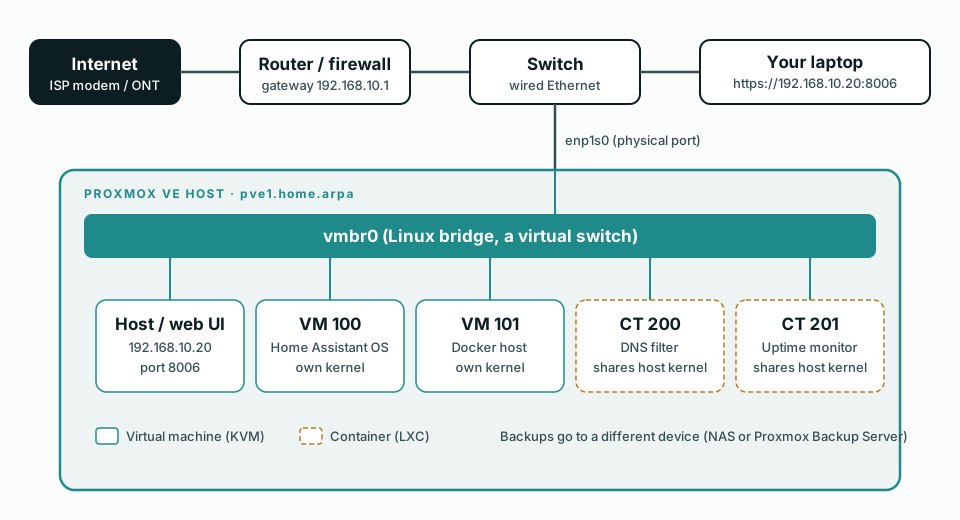
Before you install, decide on:
- A static IP address for the host that's outside your router's DHCP range (or reserved for the host's MAC address in the router). Changing the host's IP later is possible but fiddly.
- A hostname with a domain, for example
pve1.home.arpa.home.arpais reserved for home networks (RFC 8375), so it won't collide with a real domain. - Whether you'll use VLANs later. If yes, you'll make the bridge "VLAN aware" (covered below) and tag each guest's network adapter.
Installing Proxmox VE#
Enable virtualization in the firmware
Enter the BIOS/UEFI setup and enable Intel VT-x or AMD-V (SVM). Enable VT-d or AMD-Vi/IOMMU too if you might use PCIe passthrough later. If Secure Boot causes trouble, check the admin guide's Secure Boot notes for your version before disabling it.
Download and verify the installer
Download the latest Proxmox VE ISO from the official downloads page and compare its SHA256 checksum with the one listed there.
Write the ISO to a USB drive
On Windows, use a tool that writes the image in DD mode (for example Rufus, choosing DD mode when asked) or balenaEtcher. On Linux or macOS you can use
dd. Writing the image erases the USB drive.Boot the installer and choose the target disk
Boot from the USB drive and choose the graphical installer. Under Options you pick the filesystem (ext4, xfs, ZFS, or Btrfs) and, for ZFS, the RAID level. Everything on the selected disks is erased.
Set the region, password, and email
Choose a strong root password (a long passphrase stored in a password manager) and an email address for system notifications.
Configure the management network
Enter the hostname as a fully qualified name (for example
pve1.home.arpa), the static IP in CIDR form (for example192.168.10.20/24), the gateway (your router), and a DNS server.Install, reboot, and remove the USB drive
When the host restarts, its console shows the web address, for example
https://192.168.10.20:8006.
Open that address in a browser on the same network. You'll see a certificate warning because Proxmox uses a self-signed certificate at first; that's expected on a private network. Log in as root with the Linux PAM realm.
pveversion            # Proxmox VE version
ip -br addr           # interfaces and addresses
pvesm status          # storage and free space
First configuration#
1. Set up the package repositories#
Proxmox has two kinds of update repositories:
- Enterprise: tested updates for paying subscribers. It's enabled by default and returns errors without a subscription.
- No-subscription: free updates, recommended by Proxmox for testing and non-production use.
For a homelab without a subscription, the simplest path is the web interface: select your node, go to Updates → Repositories, Disable the enterprise entries (Proxmox VE and Ceph), then Add → No-Subscription. Proxmox VE 9 stores repositories in the newer .sources format; per the repository documentation, the no-subscription entry looks like this:
Types: deb
URIs: http://download.proxmox.com/debian/pve
Suites: trixie
Components: pve-no-subscription
Signed-By: /usr/share/keyrings/proxmox-archive-keyring.gpg
To disable the enterprise entries by hand instead, add the line Enabled: no to pve-enterprise.sources and ceph.sources in the same folder.
Then update:
apt update
apt full-upgradeAfter login you'll see a "no valid subscription" notice. It's informational. Leave it alone, or buy a subscription if you want to support the project and get enterprise updates. Scripts that patch the web interface to hide it can break during updates.
2. Create your own admin account and turn on two-factor sign-in#
Day-to-day, sign in as a named user instead of root:
- Datacenter → Permissions → Users → Add: create a user in the Proxmox VE authentication server realm (for example
jeremiah@pve). - Datacenter → Permissions → Add → User Permission: path
/, role Administrator (or a narrower role if you prefer). - Datacenter → Permissions → Two Factor: add TOTP (an authenticator app) or WebAuthn (a security key) for that user, and for
root.
Keep the root password in your password manager for recovery.
3. Make the bridge VLAN aware (optional)#
If your router and switch support VLANs, select the node, then System → Network → vmbr0 → Edit, and tick VLAN aware. You can then set a VLAN Tag on each guest's network device. In the configuration file it looks like this:
auto lo
iface lo inet loopback

iface enp1s0 inet manual

auto vmbr0
iface vmbr0 inet static
        address 192.168.10.20/24
        gateway 192.168.10.1
        bridge-ports enp1s0
        bridge-stp off
        bridge-fd 0
        bridge-vlan-aware yes
bridge-vids 2-4094Virtual machines vs. containers#
Proxmox runs two kinds of guests:
| Virtual machine (KVM/QEMU) | Container (LXC) | |
|---|---|---|
| What it is | A full computer with its own kernel | An isolated set of Linux processes sharing the host's kernel |
| Runs | Any OS: Windows, Linux, BSD, appliances | Linux only |
| Overhead | Higher (reserves its own memory and runs its own kernel) | Very low; starts in seconds |
| Isolation | Strong | Good, but weaker than a VM; use unprivileged containers (the default) |
| Best for | Windows, appliances (Home Assistant OS, firewalls), Docker hosts, anything needing its own kernel | Single Linux services: DNS filters, small web apps, monitoring |
Two rules of thumb:
- Use a container for a single Linux service when you want it light and fast.
- Use a VM for everything else, including Docker. Proxmox VE 9 can create containers from OCI (Docker-style) images, but the Proxmox container documentation calls that a technology preview and still recommends nesting application containers inside a VM when you want the strongest isolation and live migration.
Creating a VM with sensible defaults#
- Upload an installer ISO: local → ISO Images → Upload (or Download from URL).
- Create VM. For a modern Linux guest, these settings are a good start:
- System: machine type q35, BIOS OVMF (UEFI) for modern OSes, add an EFI disk; enable QEMU Agent.
- Disks: bus SCSI with the VirtIO SCSI single controller; enable Discard on SSD storage.
- CPU: the default CPU type for new VMs, x86-64-v2-AES, keeps guests portable between different CPUs. On a single host you can choose host to expose all of the CPU's features to the guest.
- Network: model VirtIO (paravirtualized), bridge
vmbr0, VLAN tag if you use one.
- After the OS is installed, install the QEMU guest agent inside the guest so Proxmox can shut it down cleanly and report its IP address:
sudo apt install qemu-guest-agent
sudo systemctl start qemu-guest-agent
For Windows guests, attach the VirtIO driver ISO during installation so Windows can see the VirtIO disk and network devices. The admin guide links the current driver package.
Creating a container#
Download a template first: local → CT Templates → Templates, then pick a distribution such as Debian. Then Create CT, keep Unprivileged container ticked, and give it a static IP or DHCP on vmbr0. From the command line:
pveam update                      # refresh the template list
pveam available --section system # list OS templates
pct list                          # list containers
qm list # list VMsBackups and snapshots#
Snapshots are not backups. A snapshot lives on the same storage as the VM. It's perfect for "let me try this update and roll back if it breaks," and useless if that disk dies.
Proxmox has a built-in backup tool, vzdump, that writes a complete copy of a guest to a storage location. Set it up under Datacenter → Backup → Add:
- Storage: a destination that isn't your VM disk, such as a second disk, an NFS/SMB share on a NAS, or Proxmox Backup Server.
- Schedule: daily is a good default.
- Mode: Snapshot backs up running guests with no downtime (best with the guest agent installed); Stop gives the most consistent backup but shuts the guest down briefly.
- Retention: for example, keep 7 daily, 4 weekly, and 3 monthly backups.
You can also run a one-off backup:
vzdump 101 --storage backups --mode snapshot --compress zstdProxmox Backup Server (PBS) is a separate, free product built for this. It deduplicates and does incremental backups, so daily backups of many guests take far less space and time. Run it on a different machine (or at least a different disk), never only inside the host it's protecting. See the PBS documentation.
Test a restore. Pick a backup, restore it to a new VM ID, start it with its network disconnected, and confirm it works. A backup you've never restored is a hope, not a plan. The 3-2-1 Backup Guide covers how to keep an offsite copy.
Security basics#
- Don't expose port 8006 (the web interface) or SSH to the internet. For remote access, use a VPN such as WireGuard or a mesh VPN service, and reach the host through it.
- Use two-factor sign-in for every account that can log in (see above).
- Keep the host updated with
apt update && apt full-upgrade, and read the release notes before major upgrades. - Use unprivileged containers unless you have a specific reason not to.
- Put the management interface on a trusted network. If you use VLANs, a separate management VLAN is a good habit.
- The Proxmox firewall can be enabled at the datacenter, node, and guest level. Learn it on a test VM first.
Common mistakes#
- Running
apt upgradeinstead ofapt full-upgrade. See the caution above. - Storing backups on the same disk as the VMs. One failure takes both.
- Buying too little memory, especially on a mini PC with one slot or soldered memory.
- Using Wi-Fi for the host. Use wired Ethernet.
- Changing the host's IP or hostname casually. It touches several configuration files and certificates. Plan addresses before installing.
- Running Docker inside a privileged container to "make it work." Use a VM.
- Assuming RAID or ZFS mirrors are backups. They're not.
- Exposing the web interface to the internet with port forwarding.
- Overcommitting memory without monitoring. Watch the host's memory graph, and leave headroom for the host and ZFS.
Troubleshooting#
The web interface won't load. Use https:// and port 8006 (for example https://192.168.10.20:8006). From the host console, run ip -br addr to confirm the address, and check that your computer is on the same network. Accept the self-signed certificate warning.
apt update shows 401 Unauthorized errors. The enterprise repositories are still enabled without a subscription. Disable them and add the no-subscription repository (see First configuration).
A VM won't start: "KVM virtualisation configured, but not available." Virtualization is disabled in the firmware. Check:
grep -Ec '(vmx|svm)' /proc/cpuinfo # 0 means not enabled or not supportedEnable VT-x or AMD-V in the BIOS/UEFI and reboot.
You lost network access after a network change. Log in at the physical console, review /etc/network/interfaces, fix the mistake, and run ifreload -a.
Storage is full. pvesm status shows usage. Old backups and ISO images in local are the usual cause; review your backup retention settings.
A guest won't shut down cleanly. Install and start the QEMU guest agent inside the guest, and enable it in the VM's Options.
Next steps#
- Add Proxmox Backup Server on a second machine or NAS, and schedule a monthly restore test.
- Put your lab on its own VLAN. The home and small business network guide explains how.
- Try a template workflow: build a clean VM, convert it to a template, and clone it.
- Add monitoring (for example Uptime Kuma in a container) so you know when a service goes down.
Sources and official documentation
- Proxmox VE FAQ (support lifecycle)
- Proxmox VE Administration Guide
- Proxmox VE system requirements
- Proxmox VE package repositories
- Proxmox VE roadmap and release notes
- Linux Container (LXC) documentation
- Backup and Restore
- Proxmox Backup Server documentation
- Proxmox VE wiki: WLAN (avoid Wi-Fi as a hypervisor's only interface)
- Proxmox VE Administration Guide: QEMU/KVM CPU type (x86-64-v2-AES is the web UI default for new VMs)
- Proxmox downloads (Proxmox VE 9.2 ISO installer, x86-64 and arm64)
Review history
- Technical review: Jeremiah Ellington,
- Editorial review: Jeremiah Ellington,
- Next scheduled review:
Spotted something out of date or wrong? Email a correction and I'll fix it. See how these guides are made.

Jeremiah has spent more than 20 years in IT: running help desks, managing networks, firewalls, and servers, and leading infrastructure projects for public-sector and university organizations. He runs Ellington Technologies, a part-time, owner-operated IT business in Martinez, California.