What the 3-2-1 backup rule really means, how backups differ from sync, how to set recovery goals, and how to build and test a backup plan that survives disk failure, theft, and ransomware, for homes and small businesses.
Who this is for
Households protecting photos and documents, and small businesses (roughly 1–25 people) that can't afford to lose files or a week of work.
Before you start
- A list of where your important data lives: computers, phones, NAS, cloud accounts
- About two hours to set up, plus 30 minutes a quarter to test
Applies to
Windows 11 (Windows 10 reached end of support on October 14, 2025), current macOS, Linux, NAS devices, and Microsoft 365. Tool features as documented on the review date
Ask AI about this guideChatGPT, Claude, or any assistant
These open a new chat with a prompt that points the assistant to this guide. It only sees the guide if it can open the link. If it says it can't, use Copy guide for AI and paste the text into the chat.
Nothing goes to an AI service unless you choose one. AI answers can be wrong: check them against the guide before you change anything important.
Every backup plan is eventually tested by a bad day: a laptop stolen from a car, a drive that won't spin up, a click on the wrong email attachment. The 3-2-1 rule is the simplest way to make sure that day is an inconvenience instead of a disaster.
This guide explains the rule, the decisions behind a good plan, and how to put one together. It ends with sample plans for a household and a small office.
What 3-2-1 means#
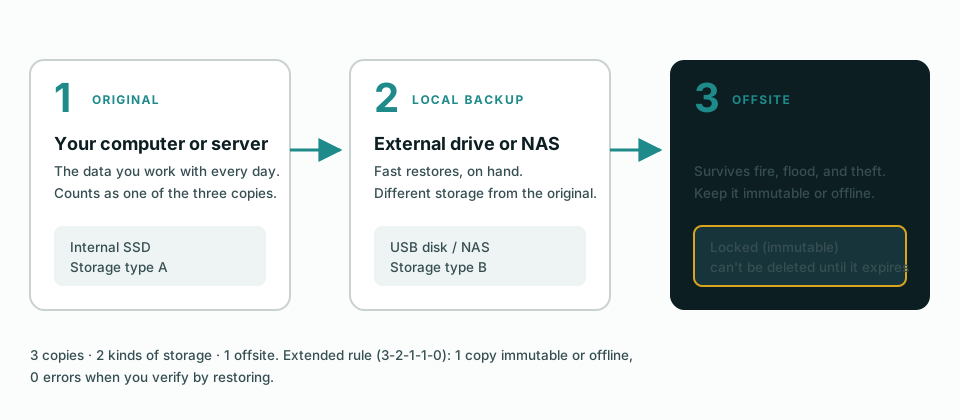
- 3 copies of your data: the original plus two backups.
- 2 different kinds of storage: for example, an internal SSD and an external drive or NAS, so one failure mode (or one bad batch of drives) can't take out everything.
- 1 copy offsite: in the cloud or in another building, so a fire, flood, or theft doesn't destroy every copy at once.
The rule works because the copies are independent: no single failure should be able to take out more than one of them. That means different devices and different places, and also different credentials. If one stolen password or one compromised admin account can delete the original and the backups, they behave like a single copy. Give the backup system its own account with multi-factor authentication, and keep at least one copy that your everyday logins can't modify.
A common modern extension is 3-2-1-1-0: one copy that's immutable (locked so it can't be changed or deleted for a set time, even by an administrator) or offline (disconnected, so nothing on the network can reach it), and zero errors when you verify your backups. That extra "1" is your strongest protection against ransomware, which deliberately goes after backups it can reach.
Backup vs. synchronization#
This is the most common misunderstanding about backups. OneDrive, Google Drive, iCloud Drive, and Dropbox are primarily sync services. They keep the same files on all your devices. That's great for convenience, but sync also copies your mistakes:
- Delete a folder on your laptop, and it's deleted everywhere.
- Ransomware encrypts your synced files, and the encrypted versions sync to the cloud.
Sync services do keep a recycle bin and some version history. OneDrive offers two restore options:
- The recycle bin (Microsoft): deleted files and folders can be restored for 30 days on personal accounts, or 93 days on work or school accounts unless an administrator has changed that setting.
- Restore your OneDrive (Microsoft): rolls your whole OneDrive back to a point in the last 30 days. Personal accounts need a Microsoft 365 subscription; work or school accounts find it under Settings → Restore OneDrive. It reverts every change made after that point, not just the damaged files; files created since then move to the recycle bin, and you can undo a restore by running Restore again.
The limits matter. These options cover only files in your own OneDrive, not files others shared with you. Anything permanently deleted from the recycle bin can't come back. And everything depends on the same account: if it's compromised or closed, the history goes with it. Useful, but not a separate, independent copy.
A backup is a separate copy, kept by separate software, often with separate credentials, that you can restore from a point in time even if the original and its sync partners are gone. Use sync for convenience, and back up as well.
Decide what "recovered" means: RPO and RTO#
Two numbers turn "we should have backups" into a plan:
- Recovery point objective (RPO): how much recent work you can afford to lose. If you back up nightly, your RPO is about 24 hours: a failure at 5 p.m. loses everything since last night.
- Recovery time objective (RTO): how long you can afford to be down while you restore.
The figures in this table are illustrative examples, not targets or guarantees. Set your own from what lost work and downtime would actually cost you, and confirm them with a test restore.
| Data | Example RPO | Example RTO | What that implies |
|---|---|---|---|
| Family photos and documents | 1 day | Days | Daily cloud backup is fine; a slow restore is acceptable |
| A home office laptop | 1 day | 1 day | Daily backup plus a way to get working on another computer |
| Accounting files for a small business | 1 hour to 1 day | Hours | Frequent backups, a local copy for fast restores |
| A small office file server or NAS | 1 hour | Hours | Hourly snapshots, nightly offsite copy, a tested restore procedure |
Fast restores (low RTO) usually come from local copies; disaster protection comes from offsite copies. That's why you want both.
The building blocks#
Local backups#
A local backup is on hardware you have on hand: an external drive, a second internal disk, or a NAS.
- Windows: File History backs up your user folders to an external drive or network location on a schedule. See Windows backup options below for what each built-in tool does and doesn't cover.
- macOS: Time Machine backs up your Mac automatically: hourly backups for the past 24 hours, daily backups for the past month, and weekly backups for all previous months, deleting the oldest when the backup disk is full. It can back up to an external drive, another Mac, or a NAS that supports Time Machine over SMB.
- Linux: tools such as restic, Borg, and Déjà Dup provide versioned, deduplicated backups.
Pros: fast to restore, no monthly fee, works without internet. Cons: a drive that's always plugged in can be encrypted by ransomware along with the computer, and it's in the same building as the original.
Using external drives well:
- Use two drives and rotate them, so one is always unplugged, ideally somewhere other than next to the computer.
- Encrypt the drive or the backup. Most backup tools and operating systems offer this; keep the password as described under Encryption and account security.
- Unplug the drive when the backup finishes if you can, so ransomware on the computer can't reach it.
- Label each drive with what it holds and when it was last used, and check the backup tool's reports for errors.
- Replace aging drives. A drive that starts reporting errors or slowing down should be replaced while its data is still readable.
Windows backup options#
Windows includes three different tools, and they do different jobs:
| Tool | What it does | Where it stores data | Good for |
|---|---|---|---|
| Windows Backup app (Windows 10 and 11) | Backs up your Desktop, Documents, Pictures, Videos, and Music folders, plus a list of your apps, your settings, and saved credentials such as Wi-Fi passwords (Microsoft) | Your OneDrive | Moving to a new PC quickly. It works through OneDrive, so it shares OneDrive's sync behavior (see Backup vs. synchronization). Treat it as a convenience, not your independent backup |
| File History (Control Panel) | Saves copies of the files in your user folders on a schedule and keeps earlier versions (Microsoft) | An external drive or a network location | Your local, versioned copy of documents and photos |
| Backup and Restore (Windows 7) system image | Creates an image of the whole system drive | An external drive or network location | Microsoft lists this System Image Backup tool as deprecated and suggests a third-party product for full-disk backups (Microsoft Learn), so don't build a new plan on it |
A sensible Windows setup combines File History to an external drive (local and versioned), a cloud backup service (offsite), and, if you want to restore a whole PC quickly, a third-party imaging tool for occasional full-system images.
NAS backups#
A network-attached storage (NAS) device can act as a backup target for every computer in the house or office, and many can back themselves up to the cloud.
Useful NAS features for backups:
- Snapshots (on Btrfs- or ZFS-based systems) capture the state of a shared folder every hour or day with little extra space.
- Immutable snapshots: on supported Synology models running DSM 7.2 or newer, shared-folder and LUN snapshots can be made immutable, locked against deletion or changes until a protection period you set has passed. Other platforms offer similar features under different names.
- Built-in cloud backup apps (for example Synology Hyper Backup) send versioned copies offsite.
If you're choosing a NAS for backups, look at the vendor's snapshot and immutability support for the specific model, not just drive bays. Synology documents which models support immutable snapshots.
Cloud backups#
Your offsite copy will usually be in the cloud. There are two broad approaches:
- An all-in-one backup service that installs on each computer and backs up continuously to the vendor's cloud. Simple, but tied to that vendor's app.
- Your own backup software plus cloud storage (for example a NAS app, restic, or Proxmox Backup Server 4.2 or later, which officially supports S3-compatible object storage as a datastore backend). More setup and more control, and with storage that supports locking, a way to add an immutable copy. Check that your backup software works with locked storage before relying on it: some tools need to delete old data from the bucket.
Check three things before trusting a cloud backup:
- How long deleted and changed files are kept (version history). Thirty days is common as a default; ransomware or a silent deletion can go unnoticed longer than that.
- Whether you can make the backup immutable (for example S3 Object Lock).
- How you'd restore everything at once: download time for a large backup can be long, so check whether the provider offers restore by shipped drive or other options.
How this comparison was made
Options were chosen to cover the common ways to get an offsite copy: an all-in-one computer backup service, a backup app with its own cloud, cloud object storage you pair with your own backup software, and two no-subscription tools. Criteria are what matters for a 3-2-1 setup: what's protected, how far back you can restore, whether backups can be made immutable, and how much setup it takes. Features were taken from each vendor's documentation on the review date; nothing here comes from benchmark testing. Commission rates were not a criterion, and two options have no affiliate program at all.
Some links in this table go to companies with affiliate programs. Links labeled paid link earn me a commission if you buy; the ranking criteria above were chosen before any commission was considered, and non-affiliate options are included when they fit better. Disclosure
| Criterion | Backblaze Computer BackupBackup service | Acronis True ImageBackup app + optional cloud | Backblaze B2 + your backup softwareCloud object storage | Synology Hyper Backup + immutable snapshotsIncluded with Synology NAS | restic (open source)Free, command-line |
|---|---|---|---|---|---|
| What it backs up | Files on one Windows or Mac computer and its internal and USB external drives (not the OS, applications, network drives, or NAS) | Full disk/system images or selected files; local disks, NAS, and Acronis Cloud | Whatever your backup tool sends (NAS, servers, Proxmox Backup Server via S3, restic, and others) | Shared folders and apps on a Synology NAS, to another NAS, USB, or cloud storage | Files and folders on Linux, macOS, Windows, and BSD |
| How far back you can restoreVersion history / retention | 30 days by default; 1-year history available at no extra cost; longer history for an added fee | Configurable by backup scheme | Set by your backup tool and bucket lifecycle rules | Versioned, with configurable rotation | Snapshots kept by policy you set (forget/prune) |
| Ransomware-resistant copyImmutability or locked backups | Not an immutable-storage feature; protection comes from version history | Anti-ransomware protection that watches for suspicious encryption, in all three editions (per Acronis's edition comparison); this is protection, not immutable storage | Yes: Object Lock (compliance or governance mode) on buckets that enable it | Immutable snapshots of shared folders and LUNs on supported models (DSM 7.2+); locked for a protection period you set | Depends on the storage backend (for example a bucket with Object Lock or an append-only server) |
| Local backups too? | No (cloud only) | Yes, plus cloning | No (storage only); pair with local backups | Yes (snapshots and USB) | Yes, to any supported repository |
| Setup effort | Low: install and it runs continuously | Medium: choose sources, destinations, and schedules | Medium to high: needs a backup app and key management | Medium | High: command line and scheduling are up to you |
| Cost model | Per-computer subscription | Annual subscription in three editions: Essentials (no cloud storage), Advanced and Premium (Acronis Cloud storage included) | Pay per GB stored (check current pricing) | Included with the NAS; you pay for the destination storage | Free software; you pay for storage |
| Best for | A simple offsite copy of a personal or small-office computer | Full-system images you can restore to new hardware, plus local and cloud copies | NAS and server offsite copies with immutability | Households and offices that already keep data on a Synology NAS | Technical users and servers |
| Website | Backblaze Computer Backup | Acronis True Image | Backblaze B2 Cloud Storage | Synology Hyper Backup | restic |
Immutable and offline backups#
Ransomware groups commonly look for backups and delete or encrypt them before encrypting everything else. CISA's #StopRansomware Guide recommends keeping offline, encrypted backups and regularly testing them. Two practical ways to get there:
- Immutable cloud storage: object storage with Object Lock in compliance mode can't be deleted or overwritten before its retention date, even with administrator credentials. Backblaze B2 and other S3-compatible services support it.
- Offline rotation: two external drives, swapped weekly or monthly, with one always unplugged and stored somewhere else. Low-tech and effective, as long as someone actually does the swap.
Retention: how far back you can restore#
Retention is how long old versions and deleted files are kept. It matters because many problems aren't noticed right away: a file deleted by mistake months ago, data that was slowly corrupted, or ransomware that sat quietly before it struck.
- Keep history longer than it might take to notice a problem. For most households and small offices, that means months rather than days.
- Use a rotation scheme so long history doesn't cost a fortune. For example, one common pattern keeps daily versions for two weeks, weekly versions for two months, and monthly versions for a year. That's an example, not a requirement: there's no universal schedule. Set yours from how quickly you'd notice a problem, your recovery point objective, any records you must keep, and your storage budget.
- Check the defaults. Many services keep 30 days of history unless you change it (see the comparison above), and a sync service's recycle bin is shorter-lived than a real backup's history.
- Some records must be kept for set periods (tax, payroll, health, legal). Ask your accountant or adviser which apply to you. Backups should support those periods, not replace proper records management.
Encryption and account security#
Backups hold a complete copy of your data, so they need at least the same protection as the original:
- Encrypt backups in transit and where they're stored. Most backup tools can encrypt data before it leaves the computer; turn that on, and use full-disk encryption on laptops and backup drives.
- Protect the encryption key or password. If the backup tool uses your own key, the provider can't recover it for you. Keep it in a password manager, with a printed recovery kit somewhere safe, and never only on the computer being backed up.
- Turn on multi-factor authentication for every account that can see or delete backups: the backup service, cloud storage, the NAS admin account, and the email account used to reset their passwords.
- Use a separate account for backup administration, not your everyday login, and give it only the access it needs.
- Keep recovery codes for those accounts with the encryption key, so losing a phone doesn't lock you out of your backups.
Ransomware resilience checklist#
- Separate credentials: the account that manages backups shouldn't be your everyday login, and it should use multi-factor authentication.
- Don't map backup storage as a drive letter on everyday computers. Ransomware encrypts whatever the user can reach.
- Keep one copy immutable or offline (see above).
- Monitor backup jobs. Set up failure emails and actually read them. A backup that silently stopped three months ago is a common discovery.
- Keep enough history to restore from before an infection that went unnoticed for weeks.
- Patch the backup system, NAS firmware included. Backup software and NAS devices are targets too.
Test your restores#
A backup you haven't restored from is a hope, not a plan. A simple schedule:
| How often | Test |
|---|---|
| Monthly | Check the backup reports: did every job succeed? Is the newest backup recent? |
| Quarterly | Restore a few random files and folders from the local and the offsite copy, and open them |
| Yearly | Do a full restore of one computer, NAS share, or server to spare hardware or a VM, and time it. Compare the time with your RTO |
Write down how to restore, step by step, including where the passwords and encryption keys are kept. The person doing the restore may be stressed, or may not be you.
Restoring: step by step#
Restores go better when the steps are written down before you need them. These are the general patterns; adapt them to your tools.
A file or folder:
Find the right version
Open the backup tool, snapshot, or version history and pick a point in time from before the problem.
Restore to a different location first
Restore into a new folder rather than over the current files, so you don't overwrite anything you still need.
Check it
Open the restored files and confirm they're complete and readable.
Put them back
Copy the good files into place, and note what you restored and from which date.
A whole computer (a failed drive, or a stolen or replaced machine):
Get ready
Repair or replace the drive or computer, and have your backup drive, cloud login, and encryption key at hand.
Restore the system or start fresh
If you have a full-system image, restore it with your imaging tool's recovery media. Otherwise install a clean operating system and your apps.
Restore your data
Bring back files from the local backup (fastest) or the cloud backup, then sign in to cloud services and let them sync.
Check and re-protect
Open a few important files, then make sure backups are running again on the restored machine.
After ransomware:
Contain it first
Disconnect affected computers from the network, and don't connect backup drives until the infection is understood.
Don't restore onto an infected system
Clean or rebuild affected machines first. Restoring onto a compromised system can reinfect the restored data and any backup it can reach.
Pick a clean restore point
Choose a backup from before the infection began, ideally from your immutable or offline copy.
Reset credentials
Change passwords and sign out sessions for affected accounts, starting with email, backup, and admin accounts, with multi-factor authentication on.
Report and learn
CISA's #StopRansomware Guide includes response steps and reporting contacts. Write down what happened and what you'll change.
Common backup mistakes#
- Treating sync as backup. OneDrive, Google Drive, iCloud, and Dropbox copy deletions and encryption too.
- Treating RAID as backup. Mirrored disks protect against one disk failing, not against deletion, corruption, or ransomware.
- Never testing a restore. The backup exists, but nobody knows whether it works or how long it takes.
- Keeping every copy in one place. A single fire, flood, or burglary takes them all.
- Leaving the only backup drive plugged in. Ransomware encrypts it along with the computer.
- Short retention. The good version aged out of the backup before anyone noticed it was missing.
- Losing the encryption key. An encrypted backup without its key can't be restored.
- Leaving data out. Email, Microsoft 365 or Google Workspace data, photo libraries, and files kept only on individual PCs are often missed.
- No alerts, or alerts nobody reads. Backups quietly stopped months ago.
- The same password everywhere. One stolen password unlocks both the data and its backups.
Common failure scenarios#
| What happens | What saves you | Common gap |
|---|---|---|
| Drive or SSD fails | Local backup (fast) or cloud backup | Backup drive was never plugged in |
| Laptop stolen | Cloud backup, full-disk encryption on the laptop | Only backup was a USB drive in the same bag |
| File deleted or overwritten weeks ago | Version history, snapshots | Retention shorter than the time it took to notice |
| Ransomware | Immutable or offline copy, restore testing | Backups were reachable with the same credentials and were encrypted too |
| Fire, flood, or burglary | Offsite copy | All copies in one building |
| Cloud account locked or compromised | An independent backup outside that account | Relied on the sync service's recycle bin alone |
| Backup software silently stopped | Job monitoring and alerts | Nobody read the failure emails |
Home vs. business: what's different#
Households mostly need protection for photos, documents, and a few computers. Keep it automatic and low-maintenance: one local and one cloud backup per computer, plus a plan for the family photo library.
Businesses have more data in more places (computers, a NAS or file server, and Microsoft 365 or Google Workspace) and legal or customer obligations. Extra considerations:
- SaaS data: Microsoft 365 and Google Workspace keep your data available, but recovering from a mistaken deletion, a malicious insider, or a compromised account is ultimately your responsibility, within whatever retention those services provide. Review the retention settings, and consider a dedicated backup for mailboxes, OneDrive, and SharePoint.
- Documentation and ownership: who checks the backup reports, and who restores?
- Retention requirements: some records (tax, health, legal) must be kept for set periods.
- Endpoint encryption and device management so a lost laptop isn't a data breach.
Sample implementation plans#
These are examples to adapt, not prescriptions. The numbers (snapshot frequency, how long copies are kept, retention locks) are starting points to adjust to your own data, budget, and obligations.
A household: two laptops and a photo library#
Local copy
Each laptop backs up to its own external drive: Time Machine on the Mac, File History on Windows. Plug it in weekly, or leave a drive connected for the Mac and accept the ransomware trade-off.
Offsite copy
A cloud backup service on each laptop, set to keep at least one year of version history if it's offered.
The photo library
If photos live in iCloud Photos or Google Photos, that's sync. Export or back up the library to one laptop's backup set, or to a NAS, so there's a copy outside that account.
Keys and passwords
Store backup and account passwords in a password manager, with the recovery kit printed and kept somewhere safe.
Test
Every few months, restore one random file from each backup and open it.
A small office: five people, Microsoft 365, and a NAS#
Inventory and goals
List the data: shared files on the NAS, email and OneDrive/SharePoint in Microsoft 365, accounting data, and anything on individual PCs. Set an RPO (for example 1 hour for shared files) and an RTO (for example 4 hours).
NAS snapshots
Hourly snapshots of shared folders kept for 2–4 weeks, with immutable snapshots enabled where the NAS supports them.
NAS offsite copy
A nightly versioned backup to S3-compatible cloud storage, into a bucket with Object Lock, using a dedicated backup account with MFA. Test the settings with a short retention first, then set the lock to cover your history needs (for example 30 days or more).
Offline rotation
A monthly backup to an external drive that is unplugged and taken offsite (for example, to the owner's home safe).
Microsoft 365
Review retention settings, and add a dedicated Microsoft 365 backup if losing email or SharePoint history would hurt the business.
PCs
Keep work files in OneDrive or on the NAS rather than only on the PC, so a PC can be replaced without a full restore. Turn on full-disk encryption.
Monitor, test, document
Send backup alerts to a mailbox someone reads. Restore test files quarterly and a full share yearly. Keep a one-page restore procedure with where the keys live.
Next steps#
- Write down your RPO and RTO for each kind of data. Even rough numbers help.
- Set up whichever copy you're missing: usually the offsite one, or the one that's immutable.
- Put a quarterly "restore test" reminder on your calendar now.
- Secure the accounts that control your backups: unique passwords in a password manager, multi-factor authentication, and a separate backup admin account (see Encryption and account security).
- Work through the Small Business Cybersecurity Checklist for the accounts, devices, and network around your backups.
Sources and official documentation
- CISA: #StopRansomware Guide
- NIST Cybersecurity Framework 2.0
- Backblaze: Version History (Computer Backup)
- Backblaze B2: Object Lock
- Synology DSM 7.2: immutable snapshots and WriteOnce
- Acronis True Image product documentation
- Microsoft: Restore files deleted from your OneDrive
- Microsoft: Restore your OneDrive
- Microsoft: Back up and restore with Windows Backup
- Microsoft: Backup and restore with File History
- Microsoft Learn: Deprecated features (System Image Backup)
- Synology: models supporting WriteOnce and immutable snapshots
- Microsoft: Windows 10 end of support
- Apple: Back up your Mac with Time Machine
- Apple: Backup disks you can use with Time Machine
- Backblaze: Supported backup data (Computer Backup)
- Acronis: True Image comparison of editions
- Proxmox Backup Server: S3 datastores (storage documentation)
- Proxmox Backup Server roadmap and release notes
Review history
- Technical review: Jeremiah Ellington,
- Editorial review: Jeremiah Ellington,
- Next scheduled review:
Spotted something out of date or wrong? Email a correction and I'll fix it. See how these guides are made.

Jeremiah has spent more than 20 years in IT: running help desks, managing networks, firewalls, and servers, and leading infrastructure projects for public-sector and university organizations. He runs Ellington Technologies, a part-time, owner-operated IT business in Martinez, California.